Quick summary
Set up in 4 steps
- 1Turn on Developer Options: go to Settings → My Fire TV → About, then click your Fire TV's name (or "Fire TV Stick") 7 times until it says you're a developer. Don't see Developer Options? Some Firesticks can't install outside apps. Please contact us and we'll help.
- 2Install the Downloader app. Then go back to Settings → My Fire TV → Developer Options → Install unknown apps and turn Downloader ON (on older Firesticks, turn on Apps from Unknown Sources).
- 3In Downloader, type the code 5188273 (or streamsurfers.net/app) to install SurfPlayer, our own app.
- 4Open SurfPlayer and sign in with the username and password we sent you.
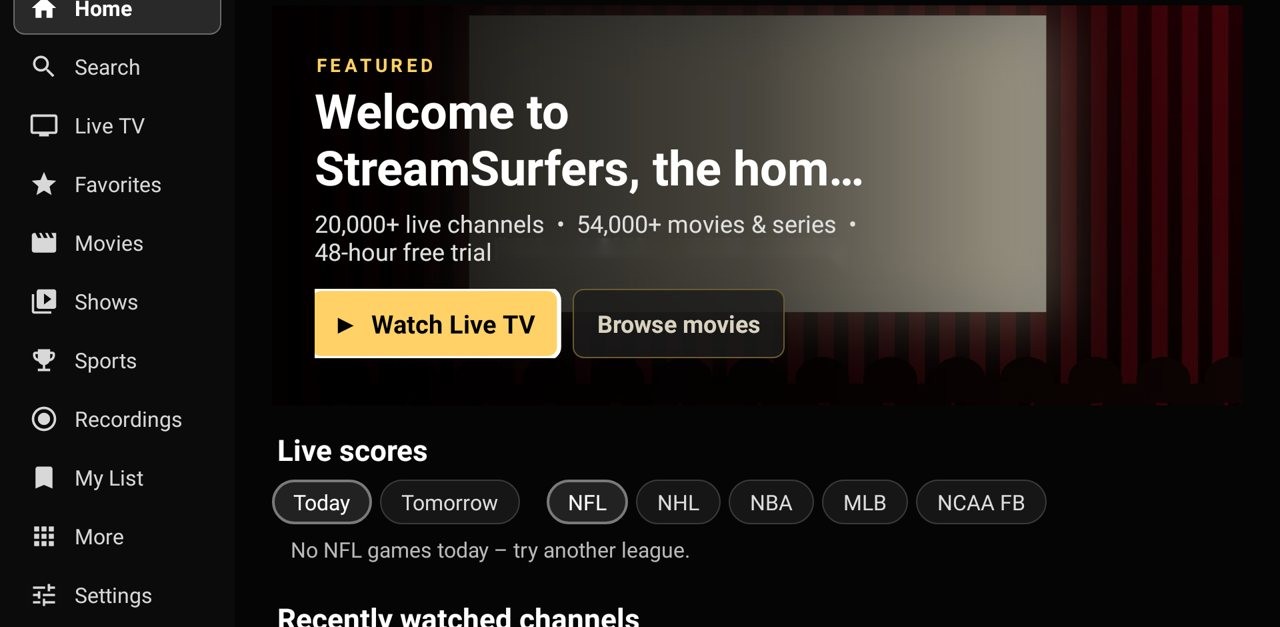
SurfPlayer, our own app, on a Firestick. See all SurfPlayer features →
Good to know
SurfPlayer works on most Firesticks. For the smoothest picture, especially live sports, an Android TV box like the Onn 4K (4GB RAM) gives better performance. See recommended devices. Older Firestick? Read this.
Setting up an Onn / Android TV box
1. Plug the box into your TV’s HDMI port and connect it to Wi-Fi or an Ethernet cable.
2. Open the Google Play Store and install Downloader (by AFTVnews).
3. In Downloader, type streamsurfers.net/app or the code 5188273 and press Go. If the box asks, allow Downloader to install apps.
4. Choose Install, then Open, and sign in.
Quick start: install SurfPlayer
In Downloader, type the code 5188273 (or streamsurfers.net/app) to install SurfPlayer, our own app, and sign in with the username and password we sent you (no server address needed). It takes about 10 minutes.
This guide walks you through setting up SurfPlayer, our own app, on an Amazon Firestick, one small step at a time. It takes about 15 to 20 minutes. Go slowly, and tick off each step as you go.
Heads up: the Fire TV Stick 4K Select runs Amazon’s locked Vega OS and can’t install SurfPlayer or any outside app. A Fire TV Stick 4K, 4K Max, Lite or older model works fine.
Before you start, have these ready
• Your Firestick, plugged into the TV and switched on, showing the Firestick home screen.
• The Firestick remote (the small black remote that came with it).
• Your Wi-Fi working on the Firestick (if Netflix or YouTube plays, you’re fine).
• Your welcome email (or WhatsApp message) from StreamSurfers with your username and password. Keep it open on your phone or write the two down on paper.
• About 20 minutes when you won’t be rushed.
The 4 remote buttons you’ll use
• The round ring: press the top, bottom, left or right edge of the ring to move around the screen. Whatever is highlighted (lit up or outlined) is what you’re on.
• The middle button: the round button in the centre of the ring. It means “OK” or “choose this”. In this guide we call it the middle button.
• The Back button: the arrow that curves to the left. It takes you back one screen.
• The Home button: the little house. It always takes you back to the Firestick home screen, so if you ever get lost, press it and start that part again.
Prefer a picture version? Here is the same setup on one page that you can show on your phone or print.
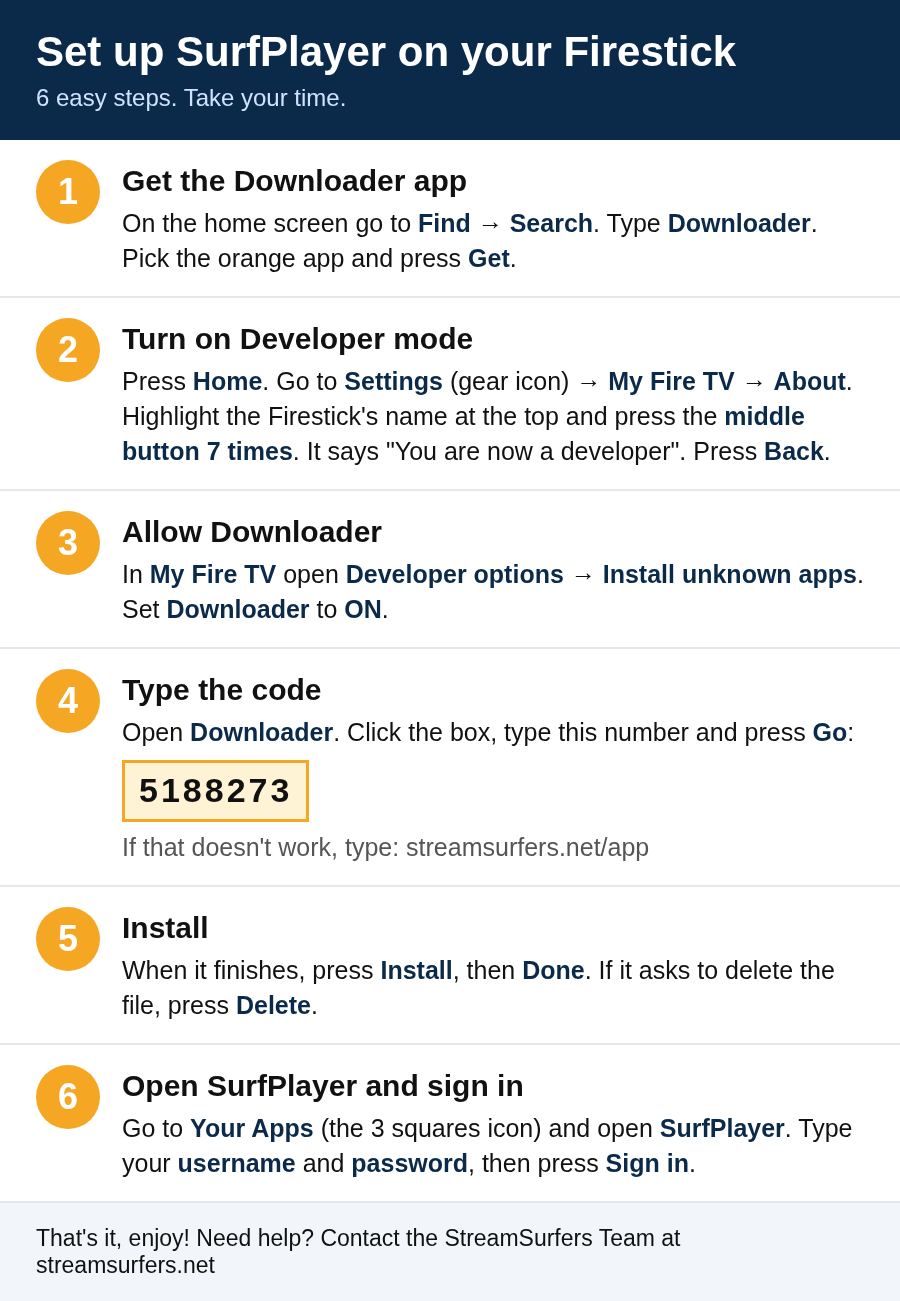
Part 1: Get the Downloader app
Downloader is a free app from the Amazon store. We use it to bring SurfPlayer onto your Firestick.
- Press the Home button (the little house) on your remote.
What you’ll see: the Firestick home screen, with a row of words or icons across the top of the screen. - Using the round ring, move to the magnifying glass at the top left of the screen. On newer Firesticks it says Find. On older ones it says Search.
- Press the middle button. If you see a Search box, move to it and press the middle button again.
What you’ll see: a keyboard on the screen. - Use the ring and the middle button to type the letters D-O-W-N-L-O-A-D-E-R, one letter at a time. Usually after a few letters, Downloader appears in a list under the keyboard. Move down to it and press the middle button.
- Pick the app with the orange picture and the word Downloader (made by AFTVnews), and press the middle button.
- Press the middle button on Get (it may say Download or Free). Wait about a minute while it installs.
Looks different? if it says Open, you already have Downloader. That’s fine, just carry on to Part 2. - When it’s done, press the Home button to go back to the home screen. Don’t open Downloader yet.
Part 2: Turn on Developer mode (Developer options)
Amazon hides a setting that lets you install apps from outside its store. This part makes it show up. You only ever need to do this once on each Firestick.
- Press the Home button (the little house).
- Using the round ring, move all the way to the right along the top of the screen until the gear icon (it looks like a small cog wheel) is highlighted. That is Settings. Press the middle button.
What you’ll see: a row of big squares or tiles, such as Network, Display & Sounds, Applications and My Fire TV. - Move to My Fire TV and press the middle button.
Looks different? on some older Firesticks this is called Device or Device & Software. Choose that instead. - Look at the list. If you already see Developer options, skip to Part 3. If not, move to About and press the middle button.
- The first line at the top is the name of your Firestick, for example Fire TV Stick 4K or Fire TV Stick Lite. Make sure that top line is highlighted.
- Now press the middle button 7 times, at a steady pace, like counting “1, 2, 3, 4, 5, 6, 7”.
What you’ll see: small messages at the bottom of the screen counting down, then “You are now a developer”. If it says “No need, you are already a developer”, that’s good too: it was already turned on. - Press the Back button (the curved arrow) once.
What you’ll see: the My Fire TV list again, and now Developer options is in the list.
Looks different? if nothing happened, go back into About, make sure the very top line (your Firestick’s name) is highlighted, and press the middle button 7 times again, a little faster.
Part 3: Allow Downloader to install apps
- You should still be in My Fire TV. Move to Developer options and press the middle button.
- Move to Install unknown apps and press the middle button.
What you’ll see: a list of apps.
Looks different? on older Firesticks it says Apps from Unknown Sources instead. Highlight it and press the middle button so it says ON. If a warning box appears, choose Turn On. Then skip to Part 4. - Move to Downloader and press the middle button once, so the word next to it changes from OFF to ON.
- Press the Home button to go back to the home screen.
Is this safe? Yes. This only lets Downloader install apps. You can turn it back to OFF after setup if you like, and SurfPlayer keeps working.
Part 4: Install SurfPlayer with the code 5188273
- Open Downloader. If it isn’t on your home screen, use Find / Search like in Part 1, type Downloader, and choose Open. (You can also use the three-squares icon, see Part 5.)
- The first time Downloader opens, a few messages may pop up, asking to Allow access or showing what’s new. Choose Allow or OK on each one.
- You’ll see a white box near the top that says something like “Enter a URL, search term or short code”. Highlight that box and press the middle button.
What you’ll see: a keyboard with numbers on the screen. - Type the number 5188273 using the ring and the middle button. Check each number carefully. If you make a mistake, use the delete key (an arrow pointing left with an X) on the screen keyboard.
- Move to Go and press the middle button.
What you’ll see: a bar filling up while SurfPlayer downloads. This takes under a minute on most Wi-Fi.
Looks different? if the code doesn’t work, delete it and type streamsurfers.net/app instead (with the dot and the slash), then press Go. It does exactly the same thing. - A screen asks if you want to install SurfPlayer. Move to Install (usually at the bottom right) and press the middle button. Wait about 30 seconds.
Looks different? if it says installs from this source aren’t allowed, Part 3 didn’t take. Press Home and do Part 3 again. - When it says App installed, choose Done (not Open).
- Downloader now asks about the install file. Choose Delete, then Delete again to confirm. This only removes the leftover install file to save space. SurfPlayer stays on your Firestick.
- Press the Home button.
Part 5: Find SurfPlayer and sign in
- On the home screen, move along the top row to the three-squares icon (three small squares with a plus sign, near the right end, next to the gear). Press the middle button.
What you’ll see: all your apps, with the newest ones at the end of the list.
Looks different? you can also press and hold the Home button for 3 seconds and choose Apps. - Move down to the end of the list until you find SurfPlayer, and press the middle button to open it.
- Optional but handy: before opening it, press the Menu button (three short lines) and choose Move to front, so SurfPlayer is always easy to find on your home screen.
- SurfPlayer opens to a sign-in screen. Highlight the Username box, press the middle button, and type your username. Type it exactly as it appears in your welcome email. Capital letters and small letters matter, and there are no spaces.
- Press the Back button once to close the keyboard if it’s in the way. Then highlight the Password box, press the middle button, and type your password the same careful way.
- Move to Sign in and press the middle button.
What you’ll see: your channels, TV guide, movies and series load in a few seconds. You’re done!
That’s it, you’re all set! From now on, just open SurfPlayer from your home screen. SurfPlayer updates itself, and when a new version is ready it will offer you the update. Just choose to update.
Watch in one app at a time: close one app before you open another. Watching in two apps at once counts as two connections.
Using an older Firestick? Read this →
If something goes wrong
- I got lost. Press the Home button and start that part again. Nothing is lost.
- I can’t find Developer options. Go back to Part 2 and press the middle button 7 times on your Firestick’s name in About. Make sure the very top line is highlighted first.
- It says installs aren’t allowed. Do Part 3 again and make sure Downloader says ON (or that Apps from Unknown Sources is ON on older Firesticks).
- The code 5188273 doesn’t work. Type streamsurfers.net/app in Downloader instead and press Go.
- It says my username or password is wrong. Check capital and small letters, and that there are no extra spaces. Forgot them? WhatsApp us at 236-991-5203, email support@streamsurfers.net, or use our contact page, and we’ll send them again.
- Buffering or freezing? Unplug the Firestick and your internet router for 30 seconds, then plug them back in. A stronger Wi-Fi signal or a wired connection helps.
- Live sports choppy? In SurfPlayer, open Settings (bottom of the left menu), scroll to TV & playback and make sure Match screen speed says On. The screen may go black for a second when a channel starts. That’s normal. Still choppy? Restart your Firestick (unplug it for 30 seconds), and check your Wi-Fi or use a network cable. An Onn 4K from Walmart gives the best performance (see recommended devices). Still having trouble? Contact us and we’ll help.
- Still stuck? In SurfPlayer go to More → Report a problem, or WhatsApp us at 236-991-5203, email support@streamsurfers.net, or use our contact page. We’re happy to walk you through it.
Take your time. You can’t break anything by pressing the wrong button: just press Back and try again.
— StreamSurfers Team
Other devices
- Onn 4K from Walmart (recommended), Android TV boxes, Android TV & Google TV: Android TV box & Google TV guide (SurfPlayer).
- iPhone, iPad & Apple TV: SurfPlayer isn’t available for Apple yet. Use any player app from the App Store that supports Xtream Codes login, and enter the details below. Apple guide.
- Samsung & LG Smart TVs: these TVs can’t install Android apps, so SurfPlayer and Downloader won’t work on them. The easiest fix is to plug in an Onn 4K from Walmart (our recommended device) or a Google TV device. Or use a player app from your TV’s app store that supports Xtream Codes or M3U. Samsung/LG guide.
- Windows & Mac: use any player that supports Xtream Codes or M3U, with the details below. Windows guide.
- Linux boxes: use any player that supports Xtream Codes or M3U, with the details below. Linux guide.
- MAG boxes: send us your box’s MAC address on WhatsApp (it’s on the sticker on the back), and we’ll activate it and send you the portal address to enter under Settings → Servers → Portals.
- Android phones & tablets: get our new phone app, SurfPlayer Mobile, at streamsurfers.net/mobile. Android guide.
Your connection details (for other apps)
- Server / Portal URL:
https://stream-surfers.net(port 443, https) - Username & password: sent to you after you order
- M3U playlist:
https://stream-surfers.net/get.php?username=YOUR_USERNAME&password=YOUR_PASSWORD&type=m3u_plus&output=ts - TV guide (EPG):
https://stream-surfers.net/xmltv.php?username=YOUR_USERNAME&password=YOUR_PASSWORD
New to StreamSurfers? Start your free 48-hour trial, then pick a plan, from less than $7/month ($80 per year).